

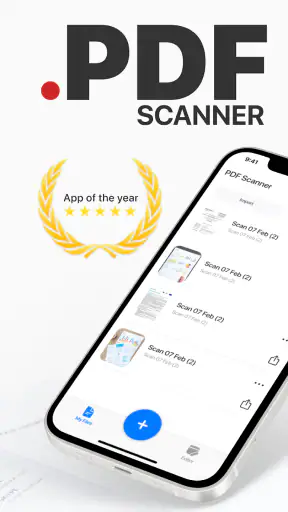
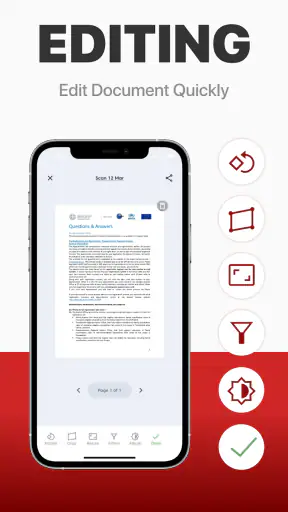
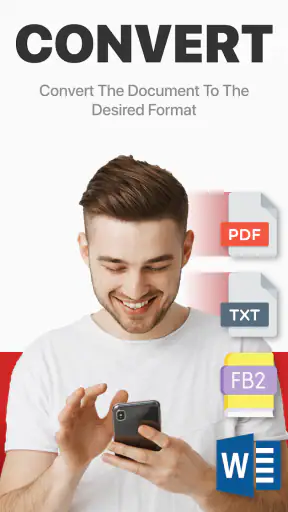
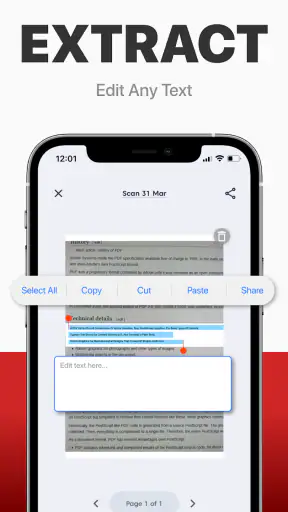
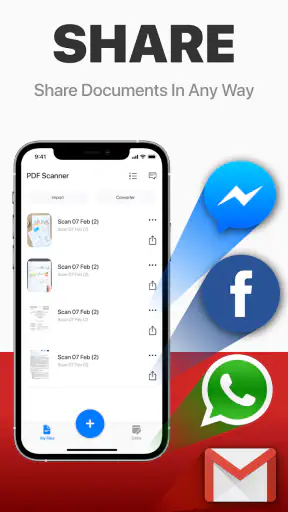
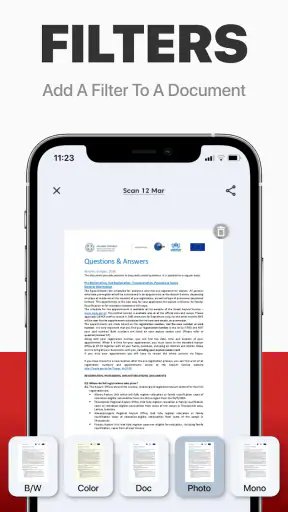
When I need to turn a paper document into something I can send, store, or edit later, I want the process to feel straightforward rather than like a small office project. PDF scanner - Scan Documents is built for that exact job. It is a free business app from Captain Show LLC, and its central promise is simple: use a phone camera to scan documents, convert them into PDFs, and share the result.
After using it as a practical document tool, I see its strongest appeal in quick, ordinary tasks. It can be useful for a signed form, a receipt, a school handout, a rental document, or several pages that would otherwise sit in a folder. The app is rated 4.4 from around 5,600 ratings, has passed one million installs, and is marked for Everyone, which gives a useful sense of its broad audience without telling me that every workflow will suit every person.
My overall impression is positive but measured. This is not the kind of app I would choose simply because it has the word “PDF” in its name. I would choose it when I want a focused scanning tool on my phone and prefer a dedicated workflow over taking ordinary photos and organizing them manually. At the same time, documents can contain sensitive information, so convenience should not replace careful judgment about what I scan, where I save it, and how I share it.
How the scanning workflow feels in everyday use
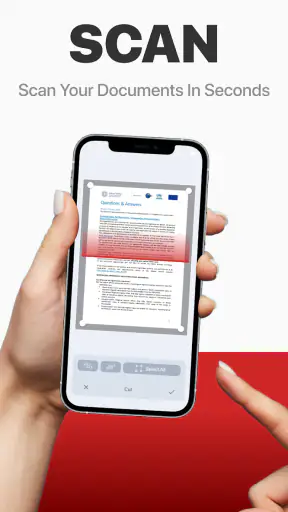
The useful way to approach this app is to think in terms of a complete document journey rather than a camera feature. I start with the physical page, capture it, check whether the page is readable, convert the result into a PDF, and only then decide whether to share or keep it. That sequence matters because a scan that looks acceptable on a phone screen may be poor when someone else opens it, prints it, or tries to read a small line of text.
For a single page, the process is naturally quick. For a group of pages, the main advantage is continuity: I can treat the pages as one document instead of creating separate image files and combining them later. That distinction is easy to overlook, but it is one of the reasons a dedicated scanner is more comfortable than the default camera app for paperwork.
I found it helpful to prepare the physical document before opening the app. A flat surface, even lighting, and a clear view of the page edges make more difference than repeatedly retaking a badly framed image. If a page has folds, shadows, or a glossy surface, I would rather correct the setup first than expect the app to rescue every imperfection afterward.
A realistic example is receiving a multi-page form that needs to be returned by email. With a normal camera, I would take several pictures, rename them, check their order, and then look for a separate way to make one PDF. Here, the intended workflow is more direct. I can capture the pages as one job, inspect the result, and share one document instead of asking the recipient to sort through a gallery.
That convenience is especially useful for people who do not regularly work with office software. A student can keep class paperwork together, a freelancer can prepare a signed agreement for delivery, and a household can digitize a receipt or service document without opening a desktop scanner. The app’s business category is therefore a good fit, although the actual users may be anyone who occasionally handles paperwork.
Where it is stronger than the usual camera app
The default camera is excellent for remembering what a page looks like, but it is not designed around document handling. A camera roll mixes scans with personal photos, while a scanner workflow encourages me to think about page order, document boundaries, and the final PDF. That difference becomes more valuable as the number of pages increases.
There is also a practical difference in how I review the result. A document app makes me pause and inspect the file as a document, not just as a picture. I can ask whether the whole page is visible, whether the text is sharp, and whether the pages belong together. That small review habit prevents a common mistake: discovering after sharing that the last page was missing or that a corner was cut off.
Compared with a desktop scanner, the phone-based approach wins on availability. I do not need to be near a printer or scanner, and I can handle a document while away from home. The trade-off is that the phone camera, lighting, and hand position become part of the scanning equipment. For archival work, large batches, or documents where exact reproduction is critical, a proper scanner may still be the better choice.
Compared with broad office suites, this app appears more focused. That can be an advantage when I only need scanning and PDF creation, because I am not navigating a large collection of unrelated tools. It can also be a limitation if my work depends on advanced editing, collaboration, extensive cloud organization, or specialized text recognition. A focused scanner is not automatically a complete document-management system.
Small decisions that improve the final file
One useful habit is to scan in the order the recipient expects to read the document. It sounds obvious, yet page order is one of the easiest things to get wrong when working quickly. I would place the pages in a neat stack first, capture them consistently, and review the completed PDF before sharing it.
Another is to leave a little space around the edges instead of framing the page too tightly. A tight crop may look efficient, but it increases the chance of losing a signature, a page number, or a line close to the margin. I prefer a complete page with modest surrounding space to a cleaner-looking file that has removed important content.
For receipts and narrow documents, I would avoid assuming that the page should be enlarged to fill the entire screen. The goal is readable information, not necessarily a full-frame image. If the original has faint printing, I would also check the PDF at a larger size before sending it, because small text is where a hurried scan usually fails.
These are not glamorous features, but they are the practical difference between creating a PDF and creating a PDF that another person can actually use. The app helps with the document workflow, but it cannot replace the user’s final quality check.
Trust, privacy choices, and where I would be careful
A scanner app handles a different kind of information from a casual photo app. A page may contain an address, an identification number, a signature, financial details, or private business text. That makes trust part of the user experience, not an optional extra. My approach is to treat every scan as sensitive until I have decided that it is safe to store or share.
I would pay close attention to the permission prompts shown on my device and to the choices presented when I use the app. A camera permission is directly relevant to scanning, but I would still read each prompt instead of approving everything automatically. If the operating system offers a choice between limited and broader access, I would select the narrowest option that still supports the task.
The same caution applies to sharing. Creating a PDF is only one step; sending it through another app creates a separate moment where I need to verify the recipient, attachment, and destination. Before tapping send, I would open the finished file, confirm that it contains only the intended pages, and check the address or conversation receiving it.
I also would not use a document scanner as a substitute for a secure records system. For a temporary form that I need to send once, keeping the file only as long as necessary is sensible. For important records, I would decide deliberately where the PDF belongs, whether the storage location has its own protection, and who can access it. The app can make capture easier, but the surrounding phone and sharing setup still matter.
Visible user control is most valuable when it is easy to understand. I want to know when the camera is active, which file I am working on, and what will happen when I choose to share it. If a prompt or screen is unclear, I would stop and inspect it rather than treating speed as the priority. That is particularly important for documents that cannot be replaced easily.
What the free model means in practice
The app is free to download and use as its basic pricing position, but it includes in-app purchases ranging from $0.99 to $29.99 per item. That means I would not assume that every possible action or convenience is included without cost. Before confirming a purchase, I would look at the exact item, whether it is one-time or recurring, and whether it changes the workflow I actually need.
This matters because a person searching for a simple PDF scanner may have a very different budget expectation from someone who needs a more complete document tool. If the free experience covers occasional scans, it may be enough for a household or student. If a frequent user encounters a paid step during a regular workflow, comparing that cost with other scanner apps or an existing office subscription becomes worthwhile.
I would also keep purchase controls active on the device, especially if other people use the phone. A clear decision before buying is part of user agency. The fact that an app is free at download does not mean I should skip the pricing screen or assume that every feature has the same access model.
Who should use it, and who should choose something else
I think PDF scanner - Scan Documents is a good match for people who want a dedicated way to turn paper into shareable PDFs without carrying a separate scanner. It suits occasional business paperwork, school documents, household administration, and small batches of pages. The Everyone age rating also reflects that the basic use case is not limited to a specialist audience.
I would be more cautious about recommending it as the only tool for a professional records department. Large-scale scanning brings requirements that go beyond capture: consistent naming, searchable archives, access management, retention rules, and sometimes exact color or resolution control. A desktop scanner and a structured document system may be a better investment there.
I would also look elsewhere if my main need were editing the contents of a PDF, filling complex forms, signing through a formal workflow, or collaborating with a team. Scanning and converting a page are not the same as managing the document after conversion. A broader office or PDF suite may be more suitable when those later stages are central.
People who rarely handle paper may not need a dedicated app at all. For a once-a-year scan, the phone’s built-in camera and existing file tools may be sufficient. The value here grows with repetition: the more often I need a clean, combined PDF, the more useful a focused scanning workflow becomes.
Version, support expectations, and my testing mindset
The current version is 1.3.3, and the app requires at least Android 9. That makes the operating-system requirement relevant before installation, particularly on an older phone. I would check compatibility first rather than assuming that any Android device can run it simply because the task itself seems basic.
The developer is Captain Show LLC, and the app’s presence at more than one million installs suggests that it is not an obscure experiment with no public use. Still, popularity should not be confused with a guarantee that it fits a sensitive workflow. I use the rating of 4.4 as a helpful signal, not as a replacement for testing the actual scan quality, permissions, and sharing process on my own device.
My first test would use a harmless sample page rather than an identity document or confidential contract. I would scan one page, create the PDF, reopen it, and try the intended sharing route. That gives me a chance to understand the interface and any purchase boundaries before trusting the app with information that matters.
I would then test a short multi-page document. The specific things I would check are whether the pages remain in the order I captured them, whether the text is readable at normal zoom, and whether the final file is easy to locate. These checks are more meaningful to me than a quick first impression because they reflect the mistakes that cause real inconvenience later.
My cautious verdict
PDF scanner - Scan Documents is most convincing when I treat it as a practical capture-and-share tool, not a complete office system. Its focused purpose makes everyday paperwork less awkward than using a camera roll, and its free entry point makes it easy to try. I can see why it has attracted a large audience, especially among people who need a PDF occasionally but do not want to set up a desktop scanner.
My recommendation comes with a clear condition: review every scan and stay deliberate about permissions, storage, purchases, and recipients. The app can simplify the mechanical part of digitizing paper, but it cannot decide whether a document should be uploaded, who should receive it, or how long it should remain on the phone.
For a student returning a form, a freelancer sending a signed page, or a household keeping a tidy digital copy of paperwork, I would suggest trying it with a non-sensitive document first. For high-volume archiving, advanced PDF editing, or strict organizational controls, I would compare it with a dedicated scanner and a fuller document-management solution. In my experience, that is the fairest way to judge this app: use it for the scanning problem it is designed to solve, and keep the privacy and document-management decisions in your own hands.


